Showing posts with label BI. Show all posts

Oct 20, 2010

Debug PowerPivot Errors

1) "Unknown Error" on Server Health:


This is a excel calculation service problem: its service account is not granted a db_owner role in Central Admin Content Database.


 See this post for explanation why this needs to be done.

2) Window Authentication Error:

This error occurs randomly after Excel Server reboot. It is because Claim to Window Token Service is not running, starting it from Service Management Console will make this error go away.


3) Red X Error in the bubble chart web part
check the version of Microsoft® SQL Server® 2008 R2 ADOMD.NET

notice: sometimes the version from control panel is misleading, so it is better to check physical file's version:
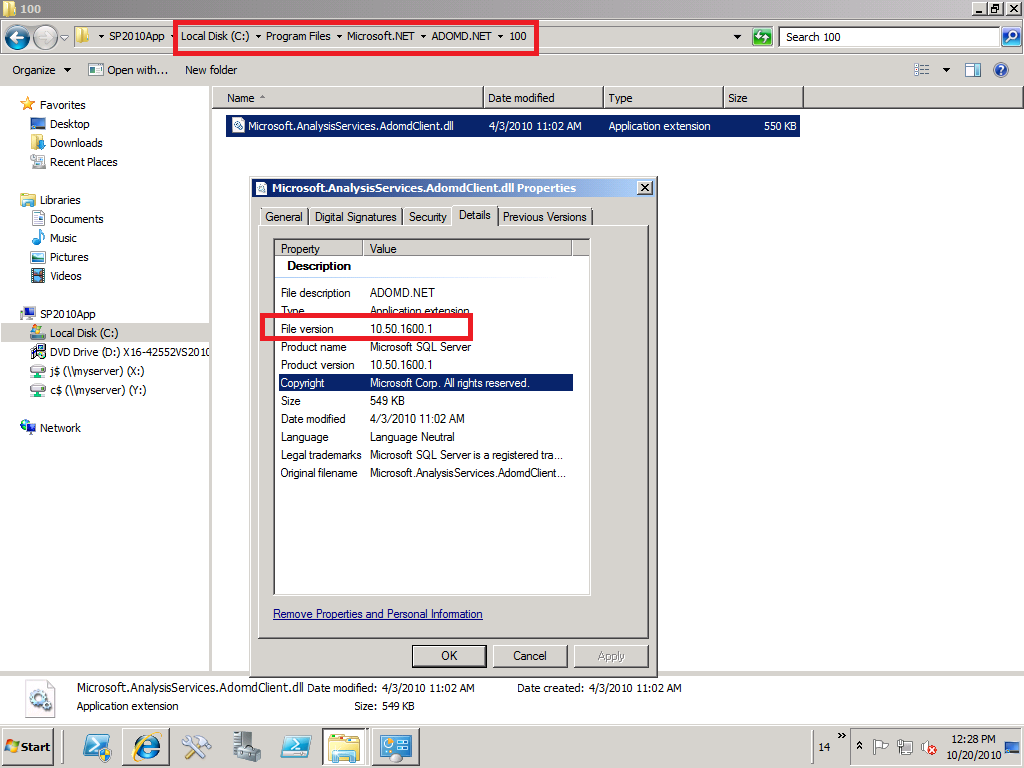

To get this version, download SQL 2008 R2 Feature Pack.

4) Red X error on PowerPivot Workbook in PowerPivot Gallery
Disabling loopback on the WFE should resolve this problem, this is best available fix so far. See this KB for details.

5) Window Event Log error on Orphan database associated with PowerPivot Application
This one happens if you created a powerpivot application and deleted it later. Even though the database was deleted, but somehow it still stays in sharepoint metadata. Use PowerShell get-spdatabase to verify and delete it.

6)PowerPivot Workbook Data Refresh "Access Denied" error
this one occurs when
  • Unattended Account is not granted "contributor" permission from sharepoint site, or
  • SSS application's owner is not set as Farm Account (don't know why....)


Data Refresh is triggered by Timer Job, which first fire request to SSS for unattended account credential, and on success, use the unattended account to open data source. In case datasource is sharepoint resource such as a integrated mode report, unattended account need sharepoint permissoin to do that. Notice, all those happen without PowerPivot service getting involved at all at this point.

7) Data Refresh Error when use SSRS report as datasource:
Errors in the high-level relational engine. The following exception occurred while the managed IDbCommand interface was being used: The remote server returned an error: (403) Forbidden..
This error occurs when powerpivot Analysis Service try to access embedded SSRS report data. This call is made directly to SSRS by PowerPivot Analysis Service. As SSRS needs to check sharepoint permission of caller credential (which credential? when kerberos is implemented, it is PowerPivot Analysis Service Account. see this post for details), it throws the above error when the PowerPivot AS service account doesn't have sharepoint read permission. Notice: in this case, it is PowerPivot Analysis Service Account that will be ultimately passed to SSRS reporting data, not unattended account.

PowerPivot Data Refresh and Excel Refresh

PowerPivot Workbook has 2 kinds of data sources, one is from its Pivot table cache, and the other is from PowerPivot Analysis Cubs. Then what  about Data Refresh? PowerPivot Data Refresh is to refresh Analysis Cubs from external data sources, and as part of this refresh process, the workbook is updated as well.

The credential used for data refresh can be: Unattended account, embedded window credential, or SSS


Notice, there is no window authentication listed above, which means the logon user credential is never used for data refresh. So obviously data in Analysis Service is not security trimmed.

Also notice, it is PowerPivot System Service which retrieves data refresh credential and then sends to Analysis Service, since both PowerPivot and Analysis Service are guaranteed running on the same server, Analysis Service can delegate this credential further to external datasource without need of kerberos delegation.

Not to confuse PowerPivot data refresh with Excel refresh. Excel refresh happens when users click slicer or manually do data refresh. The result is, its cached pivot table get refreshed from .abf file or AS cubs ultimately. PowerPivot functions as Excel data source in this case.

As both Excel Service and PowerPivot service are claim aware, it is claim token that flow from Excel to PowerPivot System service. From PowerPivot to Analysis Service which is not claim aware, it is window token that flows thanks to Claim to Window Token Service. But the most interesting thing is, PowerPivot use PowerPivot Service Application account, not logon user account to connect to Analysis Service:


This is why there is no need to configure security in PowerPivot Analysis Service, but the question is, what is the security enforcement at Analysis Service level even with the note "PowerPivot System Service immediately downgrade the connection"?

the answer is it doesn't need to be, since the data refresh is just to refresh data in AS cubs, and they don't need to be security trimmed. Excel Service will enforce security when it connects to AS Cubs to fetch data.

The follow-up question is, does Excel Service account need kerberos delegation to AS? The answer depends, if Excel Service and Power Pivot run on the same server as they should, there is no hop and Kerberos is not required, if Excel Service and Power Pivot run on different server, Excel Service account should be granted a delegation right to AS and logon users should have read access to AS Cubs if window authentication in Excel workbook is chosen.

Oct 9, 2010

other service accounts' database right and sharepoint permission: issues related with Excel, PerformancePoint and People Search

As recommended by this technet article, running sharepoint 2010 portal application under one service account, and running all other service applications such as Excel, PPS etc under other application pool accounts, if so, does any service application pool account have access to the portal's Content Database? Does any of them even have permission to sharepoint portal site?

Quoted in the same technet article:
Other application pool accounts

The other application pool account must be a domain user account. This account must not be a member of the administrators group on any computer in the server farm.


The following machine-level permission is configured automatically: This account is a member of WSS_WPG.


The following SQL Server and database permissions are configured automatically:
This account is assigned to the db_owner role for the content databases.

This account is assigned to the db_owner role for search databases associated with the Web application.
This account must have read and write access to the associated service application database.
This account is assigned to the WSS_CONTENT_APPLICATION_POOLS role associated with the farm configuration database.
This account is assigned to the WSS_CONTENT_APPLICATION_POOLS role associated with the SharePoint_Admin content database
The one in red is questionable: actually none of application service accounts has been granted db_owner for Content Database! This is the root problem of "The workbook cannot be opened" Error as described in this blog.

The same problem occurs to Performance Point Service, but PPS even has another anomaly: its service account has to be granted a "read" permission for "Data Connections" as described in this blog. Somehow PPS invoke RunWithElevatedPrivilge call to check user's permission on "Data Connections" library, and get access denied error. The error tells us that those service accounts don't even have sharepoint portal access!

Search Service Account and default content Account(crawl account) are generally granted full read access in the web application's "user policy", but even so, it doesn't mean either of them has content database owner right. Also notice that default content account needs to have "Retrieve People Data for Search Crawlers" right on Profile Service Application in order to crawl people profile or sps3://mysite. If you change the default content account, this right needs to be update manually.

Oct 4, 2010

SharePoint authentication mode to Reporting Servivce

SharePoint can use either "window authentication" or "Trusted Accont" authentication mode to connect its report services (essentially a web service).


in case of window authentication, it is logon user's credential flowing to RS, which is easy to understand, but implement window authentication/kerberos is generally mis-considered as difficult. For that reason, "Trusted Account" is provided as another option.

In case of trusted account, it is credential of application pool id that is passed over to RS. As RS by default allow all users, the authentication is not a problem. The challenge is, RS needs to check if the current logon user has permission to access report (essential a sharepoint list item in document library). RS doesn't have logon user's credential as it has never been passed in, but it does have SPUser object which Sharepoint impersonate on behalf of logon user. RS can achieve permission checking by using sharePoint object model.

At this point, RS can determine if the logon user has access to reports, but not report data itself. The report data access is enforced by each report's datasource:

As "trusted account" mode doesn't pass the logon user credential, the  report's credential can't use "window authentication/integrated" as shown above. In other word, only "window authentication" mode can use report's credential as "window authentication/integrated".

Oct 1, 2010

Don't install Sql Reporting Service with its service account as a built-in account

When you plan to integrate SSRS 2008 R2 with SharePoint 2010, it is a common scenario that DBA install SSRS and Sharepoint administrator does the configuration for integrate mode. Often times DBA just let SSRS run under a built-in account such as LocalSystem or NetworkService, and let a poor sharepoint guy do the rest of work. In order to run SSRS in an integrated mode, the first thing to do is to change its service account to a domain account. Then here comes the problem: in the sharepoint central admin, when you try to configure "Reporting Service Integration", you get an error saying failure to connect to RS!

Don't doubt about your typing skills or about your memory of your password or anything else (of course you need to check network communication between your sharepoint server and RS server, such as firewall etc). The problem is: if you ever run SSRS under a built-in account, the RS is automatically configured to run in a Kerberos authentication, and it stays that way even after the service account is changed into a domain account. Kerberos works by default if the service is running under a built-in account, but it breaks when service is running under a domain account unless you register the SPN.

As now you know why it breaks,  the solution is simply, either manually change the authentication type to "RSWindowsNTLM" in reportserver.config. or register SPN to the domain service account. see this post for details.

Aug 2, 2010

SharePoint 2010 Excel Services and External Data Refresh

Excel Services Configurations

Two most important configurations in Excel Services Application are:
  • Trusted File Locations: the whole sharepoint farm is pre-configured as trusted location.
  • Trusted Data Connection Libraries: it is still required in sharepoint 2010 (folder name can not be skipped).


Workbook Data Connection Properties:

Data Connection properties include usage and definition. The usage is per workbook, its setting is not saved in the configuration file. The connection can either use sql authentication or window authentication. Another import property for each connection definition is "Excel Services Authentication", which will be addressed in another post.


Ways to Refresh Data:

manual refresh (data connection)       refresh on open or periodic:


Some Refresh Problems:

  • Table not refreshable, only pivot table and pivot chart can be refreshed from external data.
  • Browser (IE) can cache old connection string. Close IE before testing new connection. 

  • periodic refresh won;t happen after excel service session timeout:

Excel service create a session (memory/disk) for each workbook and release them after timeout. Periodic refresh can't happen without a  ongoing session.


References:

SharePoint 2010 Excel Services Authentication Mode

One of properties in any workbook's connection is called "Excel Services Authentication". Its default choice is "Windows Authentication"

As stated in its description, this mode is supposed to use logon user's credential to connect to external data source. However this happens only if kerberos and delegation are configured correctly for both SharePoint and Excel Services, if not, excel services connect to external data source anonymously, which nevertheless doesn;t necessarily mean the failure of Excel Services data accessing. Why? since it largely depends on the connection definition in  your connection file:

  • if sql authentication is used and sql account/password are available in the connection string, excel service can still fetch external data.That explains why excel services can work OOB without any kerberos configuration even if its authentication is set as "window authentication".
  • if window authention is used in the connection string, and external data is not allowed anonymous access, you will get access deny error
  • Alternatively SSO can be used such as ProjectServer sample connection all use SSS ID called "ProjectServerApplication"
  • the "None" option requries unattended service account setup. by default, Excel service application doesn't create unattended account for itself.

To use logon user's credential to access external data source by using Excel Service,  there are 3 subsystems involved: sharepoint, Excel Service, and external Data source.

 Normally for scenario like that, all of 3 subsystems are required to be kerberos enabled (registering SPNs) and both sharepoint and Excel Service should have delegation rights. However, SharePoinit 2010 Excel Service is claim aware, i.e, it is claim that will be used for communication, thus no kerberos or SPN for Excel service is needed, nor SharePoint WFE service account (application pool id) needs the delegate right to Excel Services.

It is C2WTS that will take initial client kerberos token to external data sources. In order for that to happen, the following 2 accounts need to have delegation right to external datasoure:
  • service account running Excel Services Application. Find the application pool id from IIS:
      Update: actually it is easier to find it from Central Admin.
  • service account running C2WTS (which is a window service), or, computer account where C2WTS is running if "local system" instead of a domain account is used to run C2WTS
when configuring delegation, make sure use constrained delegation and choose "Use any authentication protocol" as shown below:


OOB SharePoint 2010 use "local system" to run C2WTS, but it is considered as the best practices to replace with a domain account. That will need some extra configurations:
  • register a trivial SPN for this domain service account (to trigger "delegation" option)
  • add to local admin group (need to reboot server)
  • In local security policy (secpol.msc) under user rights assignment give the service account the following permissions: 
          1.  Act as part of the operating system
          2. Impersonate a client after authentication
          3. Log on as a service 
  •  add this domain account into c2wtshost.exe.config as "allowedCallers"
  • add this domain account as sharepoint managed account and change c2tws service account from sharepoint central administration site
  • re-start the C2WTS service. for details see this white paper

Jul 29, 2010

Performance Point Server in SharePoint 2007

The installation of PPS creates a site in IIS called PPSMonitoring which include webservice and preview sub directory. Webservice is called to connect datasource, and Preview is used to deploy and preview dashboards instead of having to deploy to sharepoint every time.

if you get the following error when working in Dashboard Designer:

"Unable to connect to the specified server. Make sure the address is correct"
or:

"the requested item cannot be found. Verify that it exists and that you have access permission"


That most likely means PPS Monitoring web service is not running (due to app pool id password expired in some cases). and also make sure the specific user has the read permission to web.config and other physical files or use "pass-through" option


PSMonitoringWebService App Pool id is used for Dashboard Designer to connect the datasource. PPSMonitoringPreview App pool id is used during preview dashboard, and Sharepoint application pool id is used to connect to datasource once dashboard is deployed on sharepoint site.

Those application pool ids need to have appropriate access to data source. They also need to have permissions to PPS Monitoring system database (BPMdeveloper role), but this role is normally granted during installation/configuration except for sharepoint application pool if it is different. see this for details. In case  application pool ids change, you need to manually add it to this BPMdeveloper role. Otherwise you will get "unable to connect data source" error.

Jun 3, 2010

where is SSRS 2008 web service?

When you configure SSRS's web service URL in RS Configuration Manager:


Have you ever wondered where this web service is or tried to go to IIS and look for a virutal directory called ResportServer? I did, but could not find it of course. As the RS server is also a SharePoint WFE (in sharepoint integrate mode), could it be a Managed Path defined in the sharepoint? No, it is not either. Then how could this url be resolved?

The answer is,  this url is reserved in HTTY.sys, and SSRS 2008 is not using IIS any more, for more details see this post.

Why SSRS server need to have SharePoint installed?

It sounds odd at first that we need to install sharepoint on Report Server. The installation actually makes RS as one of SP WFEs even though it normally doesn't actually handle any sharepoint web requests (no AAM configuration for RS server)

The reason that SSRS need sharepoint is that RS extension use sharepoint object model to do security checking (see here for details), and SP OM can only be available on a sharepoint server.

The fact that SSRS use OM to check permission essentially makes it possible to use "Trusted Account" when configuring report server from SharePoint Central Admin:


With "Trusted Account" setting, you don't need to enable kerberos for either sharepoint site or RS web server. The downside however is, you won't be able to get a security trimmed reports. Data access is through either sql authentication or through a credential mapping.

Installation of SSRS 2008 add-in for Sharepoint 2007 is interrupted

SSRS add-in for Sharepoint need to be installed in every sharepoint server, but not required for RS server (even technically it is one of WFE). If you use SSRS 2008 R2, you need to install SSRS R2 add-in for SharePoint. At this time, this add-in is yet to RTM. SharePoint 2010 prerequisite installer will install the SSRS 2008 R2 Add-in for SharePoint 2010, so you don't need any extra install. this article is a must read on how to configure sharepoint 2010 SSRS integration.


When I working on a single server scenario, the installation is seamless, just click the .msi file. But when I scale the single server to a medium farm:

1 WFE
1 AS
1 RS
1 SQL

The installation was always interrupted and rolled back. The workaround documented in readme.htm, it requires a 2 steps command line. Weird but works.

what Sharepoint need to know about SSRS?

After SSRS provision a web service, all sharepoint need to know is its url as specified in this setting:


Like any web service, Equally important is how authentication is chosen (also shown above).

The interesting part is "Trusted Account" choice which makes service calls under user context without configuring kerberose. For this reason another setting, "grant database access", is a required configuration for SSRS. It essentially grant SSRS's service account a "full control" to all sharepoint web applications and some access to central administration ( as a proof, even though there is no place in UI where permission is specified for the SSRS service account, you can certainly log as this service account to any sharepoint site). Also this account is granted a "WSS Content Application Pool" permission to sharepoint Config db. The reason to grant those permission for RS service account is because SSRS web service will need to invoke sharePoint Object Model to check user permission in case of  "trusted account" authentication.

Sharepoint 2010 simplify the 2 settings in one place:

Error when selecting "windows Authentication" for Reporting Service Integraion

In Sharepoint 2007, you might get this error when configuring reporting service authentication mode:
 "The request failed with HTTP status 401: Unauthorized"


it can be caused by either

1) you are not inside the server where the central administration is hosted

or

2) the kerberos authentication in report server web service is not enabled. See this post on how to enable kerberos for RS

[Update] Sharepoint 2010 will not give this error in either way, but in order to get a security trimmed report, kerberos authentication still needs to be enabled manually.

Enable Kerberos authentication for SSRS 2008

Starting from SQL 2008, IIS is elminated from Reporting Service. RS web service authenitcation mode is defined in   rereportserver.config located in C:\Program Files\Microsoft SQL Server\MSRS10.MSSQLSERVER\Reporting Service\Report Server\

If SSRS is running under localsystem account, Kerberos is enabled by default, if SSRS is running under a domain account, NTLM is enabled by default. In that case, to enable kerberos you first need to make the follwoing modification:

<authenticationtypes>
< rswindowsnegotiate >
< /authenticationtypes >

Notice: Use rswindowsnegotiate, DON'T Use rswindowKerberos, otherwise the RS service will immediately become non-accsible.


After that, you need to register SPN for SSRS servic account in Domain Controller, and also grant Delegation right for this account ( if it is localsystem account, grant the server computer delegation right instead)

Now the RS service is Kerberos enabled, but in order to use "Window Authentication (Integrated)" in data source configuratoin, the user database must be kerberos enabled too:


 To do that, you need to register SPN for sql service account running at user sql server, but delegation for this account is NOT necessary as it is the last hop in the chain.

You can certainly don't choose "Window Authentication", but  only the window authentication can give you  security trimmed reports, while other option can't not.

At this point, you should be able to view a report from RS web serive, but if you view reports from Sharepoint document library or Report Viewer web part,  you may get a 401 error
The reuest failed with HTTP status 401: Unauthorized
In order to make it work from SharePoint, SharePoint web applications have to be Kerberos enabled, and "window authentication" is selected in the setting of "Reporting Services Integration"

Permission to view reports for SSRS 2008 in SharePoint 2007 integrated mode

we know one of nice things about SSRS in SharePoint integrated mode is that user permission is managed by sharepoint site or library, in other words, to grant a user the permission to view report is as simple as to grant a read permission to sharepoint site or library where reports sit. It is very user friendly!

But one exception is, if you log in as sharepoint farm account or application pool id account, even though both accounts are marked as "System Account" and have access to absolute everything, it seems SSRS is not aware of them. You will get the following error when trying to view reports from sharepoint:

The permissions granted to user 'SP\spFarm' are insufficient for performing this operation. ---> Microsoft.ReportingServices.Diagnostics.Utilities.AccessDeniedException: The permissions granted to user 'SP\spFarm' are insufficient for performing this operation.
[update] this problem only  occurs to sharepoint 2007 when kerberos is enabled for both sharepoint and RS, and data connectin uses window authentication. Sharepoint 2010 has this problem fixed.

The workaround is to add them explicitly in site or library, and the problem is gone.

Jun 1, 2010

another error when configuring sharepoint 2007 integration with Reporting Service

when I try to configure "Grant database access" of reporting service in Sharepoint Central Administration, I keep getting the following error:

Unable to connect to the Report Server WMI provider.

As I was able to do this for another Report Server where SSRS 2008 R2 is installed, so the first thing I was thinking of is to upgrade  SSRS 2008 SP1 with CU#5, but it made no difference.

The 2 servers are in the same domain, and can ping each other. Then i found the interesting thing is, i got the same error no matter what credential i put in, which lead me to think it might be a window firewall issue. I went to check the RS server's window firewall, it is ON! I turned it off, the problem went away immediately.

It turns out the following exception should be made: Window Management Instrument (WMI).  Sharepoint did give out a very useful error message! Don't blame SharePoint.